
Abhinav Randive
Contributing Writer
Students at The College of Wooster can now use the Brickfield Accessibility+ Toolkit on Moodle to access course materials in different formats. Introduced for the 2026-27 academic year, the toolkit allows students to convert supported files into formats such as audio and ePUB. It also provides guidance on accessibility features available through students’ browsers and devices.
The addition is part of the Educational Technology office’s efforts to make Moodle course materials more accessible. By offering alternative formats and explaining existing accessibility tools, Brickfield gives students more flexibility in how they engage with readings and other course content.
One option allows students to convert supported readings into audio files. Rather than reading from a screen, students can listen to their materials, which may be useful for those who prefer audio or want another way to work through readings while away from their computers. Students can also convert supported files into ePUB, a digital reading format compatible with various applications and devices.
The Educational Technology office has created a Brickfield File Conversion Handout with instructions for using the feature. The handout is available on the Technology@Wooster website and can help students get started.
Students can use Brickfield to convert files already posted in their Moodle courses by clicking on the multicolored circular-arrow icon for Brickfield File Conversion. This opens an “Accessibility File Conversion” window, where students can select a conversion type and choose an output format. This feature allows students to convert files uploaded to Moodle by their professors into alternative formats that better suit their learning needs.
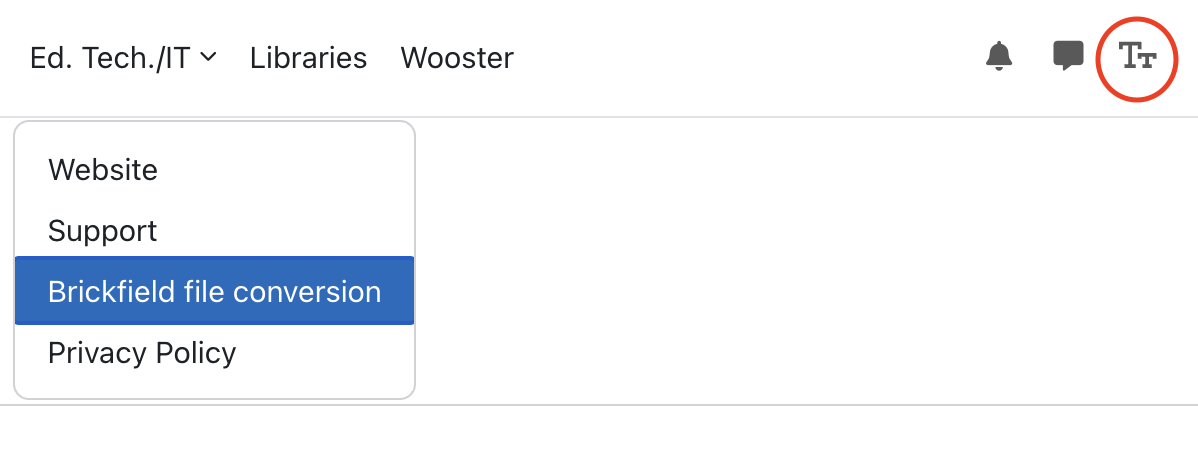
In addition to file conversion, Brickfield Guides helps students learn about accessibility features available through their browsers and operating systems. Students can open the guide by selecting the “Tt” icon in the top-right corner of Moodle. The guide provides instructions for features such as reader mode, text-to-speech, adjusting text size and font, changing text and background colors, modifying text spacing, enabling dark mode and translating webpages.
The guide also includes information about creating accessible documents and presentations, as well as converting files into alternative formats. These resources can help students identify tools already available on their devices and learn how to use them. Students can explore the options to determine which formats and accessibility tools best suit their coursework.
Students looking for additional information can consult the Brickfield Accessibility Toolkit Features Page or contact the Educational Technology office. The Brickfield File Conversion Handout is also available on the Technology@Wooster website.
